Quote Template Word Editable Free
Need to create a quote now?
Generate professional quotes in less than 2 minutes with our AI-powered tool.
A quote template is the most practical tool for creating professional quotes without spending hours designing from scratch. With a good template, you only need to customize the client data, products or services and prices, and you have a quote ready to send.
In this guide we show you the best quote templates to download for free in Word and Excel, with models for different types of businesses and industries.
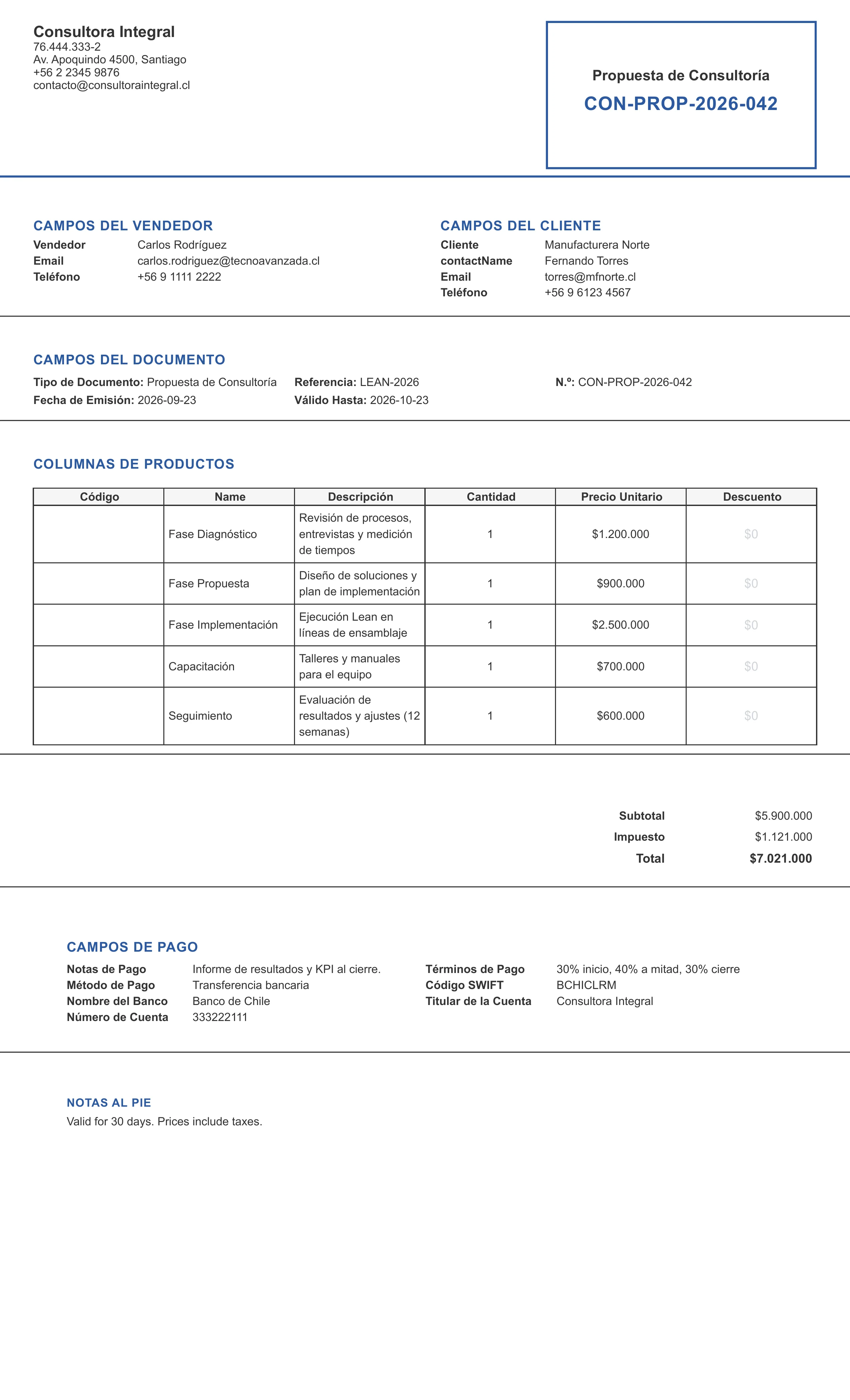
Editable Word quote template example generated with the system
This is what a Word quote looks like when created with our generator: a branded header, a description of the services, and a price table ready to edit and export to PDF.
What is a quote template
A quote template is a pre-designed template that contains the complete structure of a professional quote: header with company data, client information, product or service table, commercial terms and space for signature.
The advantage of using a template is that it ensures consistency in all your quotes, reduces calculation errors and saves time by not having to design the format each time you need to issue a quote.
Types of quote templates
| Type | Ideal use | Main advantage |
|---|---|---|
| Editable Word | Complete customization | Easy to modify and adapt |
| Excel with formulas | Automatic calculations | Automatic sum of totals and VAT |
| Fillable PDF | Quick sending | Professional format without editing |
| Google Sheets | Team work | Access from any device |
Quote template in Word
The Word format is the most versatile because it allows editing both text and design. It is ideal for businesses that need to deeply customize each quote.
Word template structure
[Your company logo]
Company Name S.A. de C.V.
Tax ID: XXXX000000XXX | Tel: +52 (55) 1234-5678
email@yourcompany.com | www.yourcompany.com
─────────────────────────────────────

QUOTE
Number: QUO-2026-001
Date: July 29, 2026
Valid until: August 12, 2026

CLIENT DATA
Name: ___________________________________
Company: __________________________________
Tax ID: ______________________________________
Address: ________________________________
Phone: _________________________________
Email: ___________________________________

[Products/services table]
| Concept | Description | Quantity | Unit Price | Total |
|---------|-------------|----------|------------|-------|
|         |             |          |            |       |

Subtotal: $________
VAT (16%): $________
Total: $________

COMMERCIAL CONDITIONS
- Payment method: _________________________
- Delivery time: _____________________
- Warranty: _____________________________
- Quote validity: ______________

 Notes: __________________________
________________________________________

_________________________
Authorized signature
How to customize the Word template
- Header: Replace the example data with your real information. Include logo, name, tax ID, phone and email.
- Numbering: Establish a coding system like QUO-2026-001 that increments.
- Product table: Adjust columns according to your business type. You can add columns like unit of measurement or discount.
- Conditions: Customize payment, delivery and warranty conditions according to your business.
- Design: Change colors and fonts to match your brand’s visual identity.
Quote template in Excel
The Excel format is ideal when you handle many products or need automatic calculations. The formulas add subtotals, VAT and totals without you having to do anything manually.
Excel template structure
| Cell | Content | Formula |
|---|---|---|
| A1 | Company logo | (Insert image) |
| B1 | Company name | (Text) |
| A3 | CLIENT DATA | (Text) |
| A5 | Client name | (Free cell) |
| A10 | CONCEPT | (Column header) |
| B10 | DESCRIPTION | (Column header) |
| C10 | QUANTITY | (Column header) |
| D10 | UNIT PRICE | (Column header) |
| E10 | TOTAL | =C11*D11 |
| E20 | Subtotal | =SUM(E11:E19) |
| E21 | VAT (16%) | =E20*0.16 |
| E22 | TOTAL | =E20+E21 |
Advantages of Excel template
- Automatic calculations: Formulas add subtotals, VAT and totals without errors.
- Multiple sheets: You can have a template per service type or client.
- Charts: You can add summary charts for presentations.
- Version control: Easy to save different versions of the template.
Quote template for professional services
Professional services require a different approach than products. You must include work scope, deliverables, timeline and evaluation criteria.
Consulting template example
[Logo]
Professional Consulting Company
Tax ID: CON123456789 | Tel: +52 55 9876-5432

CONSULTING SERVICES QUOTE
Ref: QUO-2026-CONS-001

CLIENT DATA
Company: ________________________________
Contact: _______________________________
Position: __________________________________

SERVICE DESCRIPTION
Scope: ________________________________
_________________________________________
_________________________________________

TIMELINE
Phase 1: _________________ (Weeks 1-2)
Phase 2: _________________ (Weeks 3-4)
Phase 3: _________________ (Weeks 5-6)

DELIVERABLES
1. _____________________________________
2. _____________________________________
3. _____________________________________

INVESTMENT
| Phase | Description | Price |
|-------|-------------|-------|
| 1     | Diagnosis   | $     |
| 2     | Proposal    | $     |
| 3     | Implementation | $  |
|       | TOTAL       | $     |

CONDITIONS
- Payment: 50% advance, 50% against delivery
- Validity: 30 calendar days
- Warranty: 3 months on deliverables
Quote template for products
Product quotes focus on the item table with unit prices, quantities and subtotals. It is important to include technical specifications and availability.
Materials sales template example
[Logo]
Materials Distributor
Tax ID: DIS987654321 | Tel: +52 33 4567-8901

QUOTE
Number: QUO-MAT-2026-015
Date: July 29, 2026

CLIENT: _________________________________
DELIVERY ADDRESS: __________________

| No. | Item | Unit | Quantity | Unit Price | Total |
|-----|------|------|----------|------------|-------|
| 1   |      | pc   |          | $          | $     |
| 2   |      | pc   |          | $          | $     |
| 3   |      | bag  |          | $          | $     |

Subtotal: $
Discount (5%): $
VAT (16%): $
TOTAL: $

CONDITIONS
- Delivery: 3 business days
- Payment: cash against delivery
- Warranty: manufacturer's terms
Quote template for specific industries
Each industry has particular needs that should be reflected in the quote template.
Construction and works
Include work items, materials, labor and equipment. Add execution deadlines and work warranty.
Technology services
Detail technological scope, licenses, implementation, support and training. Include service levels (SLA).
Health and laboratories
Specify equipment, reagents, maintenance, training and regulatory compliance.
Topography and geomatics
Include coverage areas, required accuracy, cartographic deliverables and execution deadlines.
Common mistakes when using quote templates
Not customizing the header
Using the template without changing company data generates distrust in the client. Always verify that header, tax ID and contact information are up to date.
Forgetting to update prices
A template with outdated prices can cause losses. Review prices at least once a quarter.
Not including commercial conditions
Sending a quote without payment, delivery or warranty conditions leaves the transaction without clear rules. Always include these sections.
Sending in editable format
Never send the template in Word or Excel. Always export to PDF so the client cannot modify prices or conditions.
Not adding validity date
Without a validity date, the client can accept the quote months later with old prices. Always include a deadline.
Download our quote templates for free
We have professional templates ready to download and customize:
- Word template: Ideal for professional services and consulting
- Excel template: Perfect for products with many items
- PDF template: For quick sending with professional format
Frequently asked questions
How often should I update my template?
Update prices and conditions at least once a quarter. Review the design every 6 months to maintain a professional look.
Can I use the same template for different clients?
Yes, but customize the client data in each send. The template is the base, but each quote should feel unique to the client.
What format is best for email sending?
Always PDF. PDF preserves the format, cannot be modified and looks professional on any device.
How do I add my logo to the template?
In Word: Insert > Image. In Excel: Insert > Image. In fillable PDF: use an editor like Adobe Acrobat or Smallpdf.
What information must I include mandatory?
Your company data, client data, detailed product/service description, prices, payment conditions, delivery date and quote validity.
Frequently asked questions
What is a quote template?
A quote template is a pre-designed template that serves as a base for creating professional quotes. It contains the structure, format and necessary fields that you only need to customize with your company data, client and products or services.
What is the difference between a quote template and a quote format?
They are synonymous terms. Template is commonly used in Spanish-speaking countries, while format is used in English. Both refer to a base document that facilitates the creation of standardized quotes.
In what format should I send my quote template?
Always send the quote in PDF so the client cannot modify prices or conditions. Save the original template in Word or Excel for future edits. PDF preserves the format and looks professional.
How often should I update my quote template?
Review and update your template at least once a quarter. Update prices, conditions, add new products or services, and make sure contact information is current. Also update the design if necessary to maintain a professional and modern look.
Can I use the template for different types of services?
Yes, templates are versatile. You can have a general template and create specific versions for each type of service or product. The important thing is to maintain consistency in your brand format.